A bank statement, a price list or a report arrives as a PDF, and you need the numbers in a spreadsheet. Retyping is slow and error-prone, and copying and pasting usually dumps everything into one column. This guide explains why tables are hard to pull out of a PDF and how to get them into Excel as real, usable numbers.
Why a PDF table does not paste cleanly
A PDF does not store a table. It stores text at fixed positions on a page, and sometimes a few lines drawn around it. Excel has to guess where rows and columns begin, which is why a pasted table often arrives as a block of text.
Two kinds of table behave differently:
- Ruled tables have visible borders, so the cell edges can be read from the lines.
- Borderless tables, such as most bank statements, are only aligned text. The columns have to be inferred from the white space between words.
Numbers should be numbers
The worst result is a spreadsheet where every figure is stored as text. It looks right, but SUM returns zero and sorting puts 100 before 20. After any conversion, click a cell and check that it is right-aligned and that a total actually adds up.
Watch for currency symbols, thousands separators, negative numbers in brackets and dates. Those are where conversions most often go wrong.
Convert a PDF table to Excel
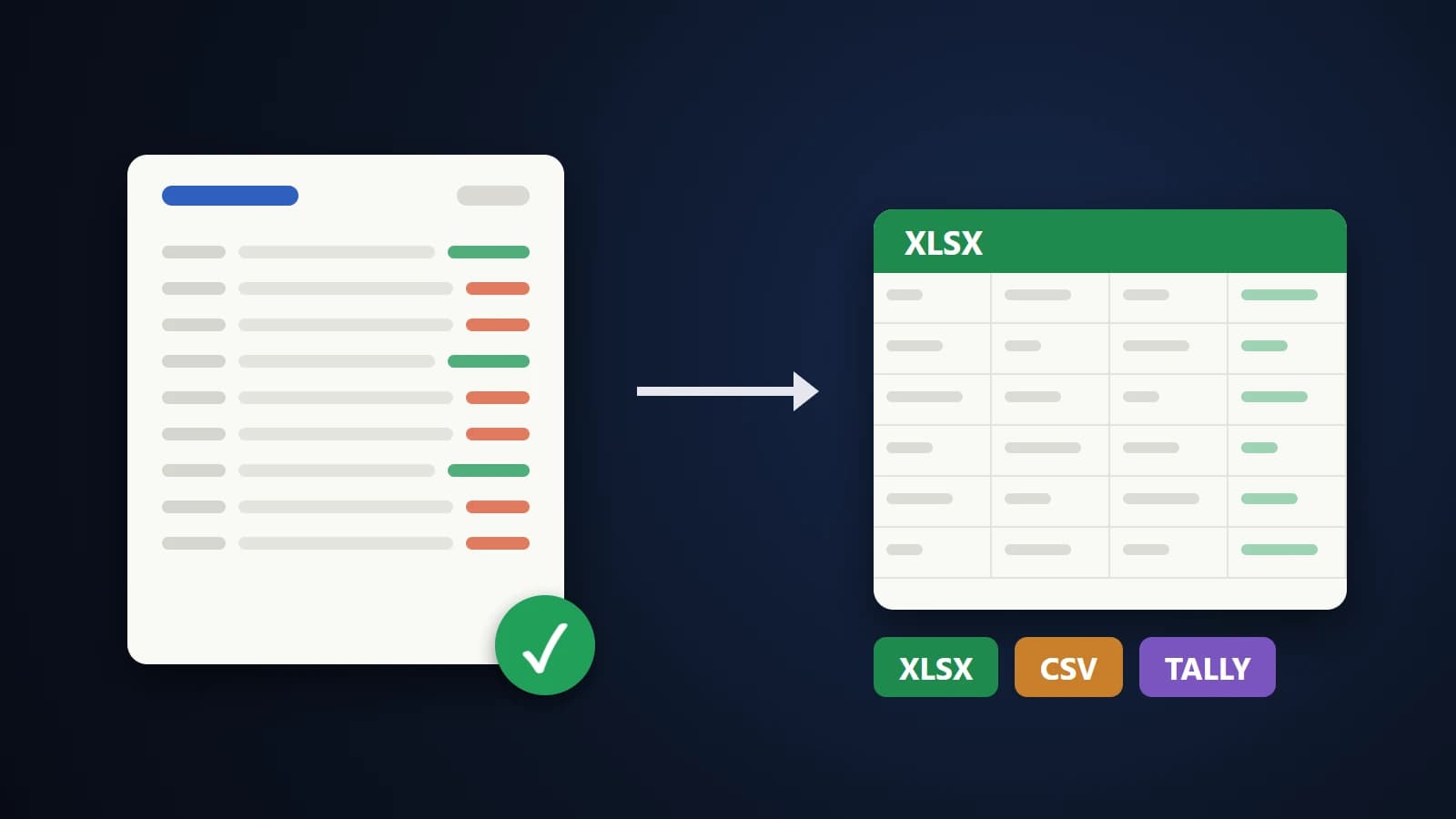
- Open PDF to Excel and add your PDF.
- Look at the preview of the tables that were detected and how many pages were read.
- Choose how to arrange the sheets: one consolidated sheet that joins a table running over several pages, one sheet per page, or one sheet per table.
- Convert and download the .xlsx file.
The converter treats currency, decimals, percentages and negative amounts as real numbers, and it removes the header row that repeats at the top of each page when it joins a long table. Files are sent to our server over an encrypted connection, converted, and deleted as soon as the result is returned. Files up to 50 MB are accepted.
Always check the result
Even a good conversion deserves a quick check:
- Compare totals. Add a column in Excel and compare it with the total printed in the PDF.
- Check the first and last rows of each page, where tables are most often split.
- Look at merged or wrapped cells. A cell that wrapped onto two lines in the PDF can become two rows.
- Be careful with scans. A scanned PDF is a picture, not text. Recognition can be wrong, so verify every figure that matters.
Frequently asked questions
Will formulas be recreated?
No. A PDF holds the results, not the formulas behind them. You get the values, ready for you to add your own formulas.
Can it handle a table that runs over many pages?
Yes. The consolidated mode joins matching tables from consecutive pages into one sheet.
Is the PDF kept on your server?
No. It is deleted as soon as the Excel file is returned.
What if only part of the PDF is a table?
Use the preview to see what was detected. If the layout is complicated, the one-sheet-per-table option keeps tables apart so you can copy what you need.
The short version
A PDF only holds positioned text, so a converter has to rebuild the table. Choose a layout that fits, make sure the figures are real numbers, and compare a total before you rely on the file.