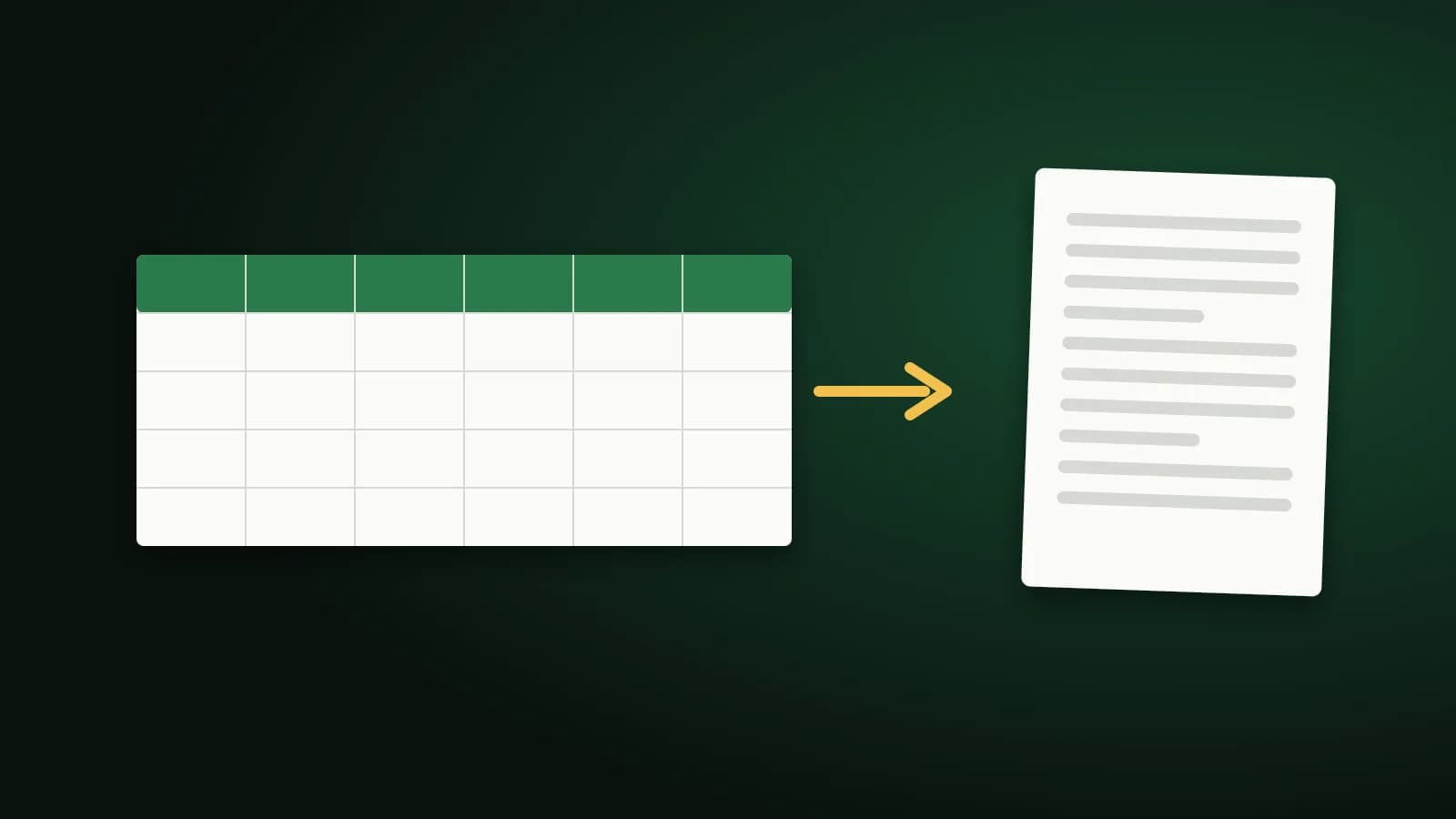
You send a spreadsheet to someone and the printed page cuts off the last three columns, or the PDF splits one table across four sheets of paper. Converting Excel to PDF is simple once you decide a few things up front: which sheets, which orientation and how wide the table may be.
Why spreadsheets break across pages
A worksheet has no page. Excel invents page breaks at print time based on paper size, margins and scale. A table wider than the page therefore spills onto extra pages, with the right-hand columns separated from the labels they belong to.
Three settings decide how a sheet lands on paper:
- Orientation. Wide tables almost always need landscape.
- Scale. Fitting every column to one page width keeps the table together, at the cost of smaller text.
- Paper size. A4, Letter and Legal have different widths.
Convert an Excel file to PDF
- Open Excel to PDF and add your file. .xlsx, .xls, .csv, .tsv and .ods are accepted.
- Check the sheets it found. Convert the whole workbook or pick a single sheet.
- Choose portrait or landscape (wide data is suggested as landscape), the paper size, and whether to fit all columns on one page.
- Convert and download the PDF.
The PDF is a vector document, so text stays sharp when you zoom or print. Files are sent to our server over an encrypted connection, converted, and deleted as soon as the PDF is returned. Files up to 50 MB are accepted.
Tips for a clean PDF
- Hide what the reader does not need. Helper columns and scratch sheets belong in the Excel file, not the PDF. Convert only the sheet you mean to share.
- Check the widest row. If one long text cell forces the whole table to shrink, wrap that column or shorten the text.
- Use clear headers. A repeated heading row makes a long table easier to follow.
- Look at the result. Zoom in once at 100 percent to be sure the smallest text is still readable.
CSV files
A .csv file has no formatting, only values. The converter styles it with a header row, light borders and column widths that fit the content, which is usually enough for a tidy report. If you need exact fonts or colours, format the data in Excel first and convert the .xlsx.
Frequently asked questions
Will my formulas be visible in the PDF?
No. A PDF shows the calculated values, not the formulas behind them.
Can I convert only one sheet?
Yes. After you add the file, choose a single sheet or the whole workbook.
Why did the table get tiny?
Fitting all columns to one page width scales the table down. If the text is too small, switch off that option and accept a table that continues onto a second page, or remove columns you do not need.
Is my spreadsheet kept on your server?
No. It is deleted as soon as the PDF is returned.
The short version
Decide the sheets, orientation and page width first, convert, then look at the PDF once at full size. A PDF is a good way to share numbers that people should read but not change.