
Page numbers are the detail that makes a report, thesis or contract look finished, and the thing that goes wrong most often. Numbers appear on the cover, restart in the middle, or refuse to change. This guide covers the common setups, step by step, and what to do when Word doesn't cooperate.
The basic way: insert a page number
In Word on a computer:
- Open the Insert tab and choose Page Number.
- Pick a position — Top of Page (header) or Bottom of Page (footer) — and a style, such as Plain Number 3 for bottom-right.
- Close the header and footer with Close Header and Footer (or double-click the page body).
Word inserts a field, not typed text, so the number updates by itself when pages are added or removed. That distinction matters later.
Skip the cover page
A cover or title page usually shouldn't carry a number.
- Double-click the header or footer area to open it.
- On the Header & Footer tab, tick Different First Page.
Now page 1 is blank, but page 2 shows 2. If you want it to show 1, go to Insert → Page Number → Format Page Numbers and set Start at to 0. Page 1 becomes 0 (hidden), so page 2 becomes 1.
Whether the first numbered page should read 1 or 2 is a convention. Reports often count the cover; theses and books often don't.
Roman numerals for the front matter, 1, 2, 3 for the body
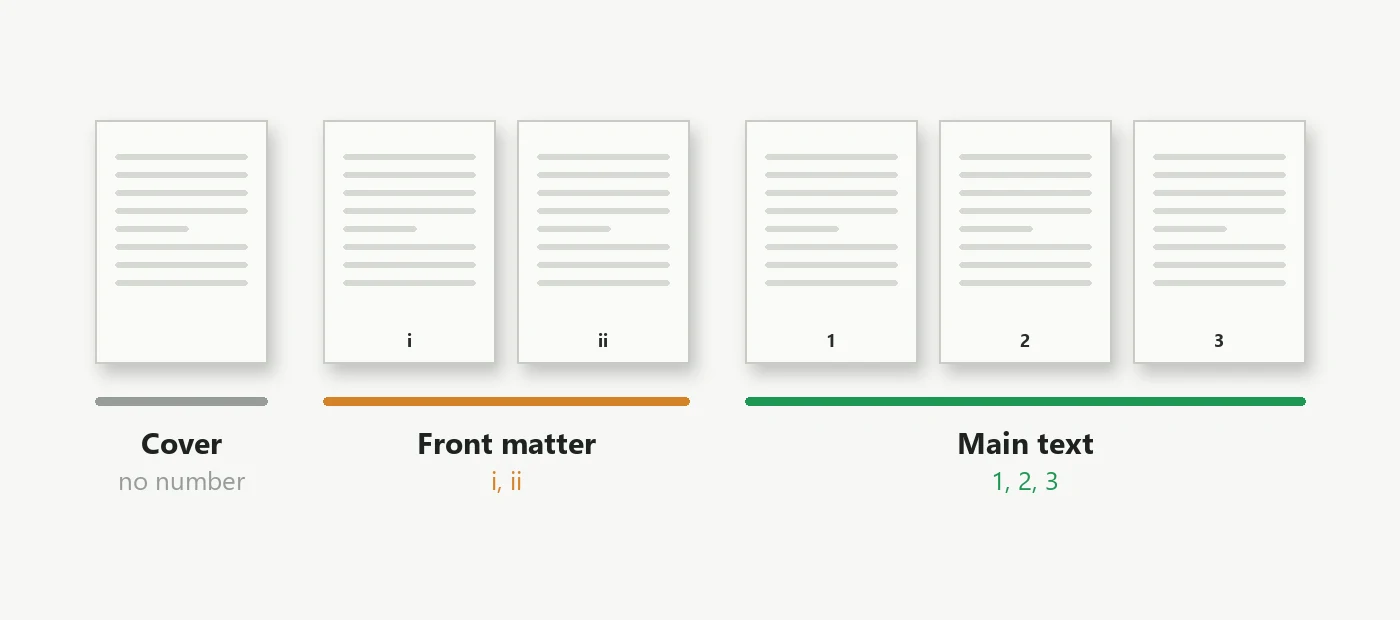
Theses and long reports often number the preface and contents in Roman numerals (i, ii, iii) and restart at 1 for the main text. That needs two sections.
- Put the cursor at the end of the front matter and choose Layout → Breaks → Next Page.
- In the first section's footer, open Insert → Page Number → Format Page Numbers and set Number format to i, ii, iii.
- Double-click the footer of the second section and switch off Link to Previous on the Header & Footer tab. Without this step, your change would also alter section one.
- In that footer, open Format Page Numbers again, choose 1, 2, 3 and set Start at to 1.
"Page 3 of 12"
Use Insert → Page Number → Bottom of Page and pick a Page X of Y style. Behind the scenes it combines the PAGE field (current page) with the NUMPAGES field (total). If you want your own wording, use Insert → Quick Parts → Field… and add each field yourself.
One catch: NUMPAGES counts every page, including an unnumbered cover. On the second page of a 10-page document, you'll see "Page 1 of 10".
Top right, as APA and MLA ask
Choose Insert → Page Number → Top of Page → Plain Number 3. For MLA, click in the header after inserting the number and type your surname before it (for example, Smith 1).
The no-Word way: number a .docx in your browser
If you don't have Word handy, or you have many documents, the Add Page Numbers to Word tool does the same job without opening Word:
- Upload your .docx. It is edited locally in your browser and never uploaded.
- Choose header or footer, alignment, a format such as "Page X of Y", the number style and the start number. A live preview shows the result.
- Download the new .docx.
The numbers are real Word fields, so they keep updating when you edit the file later. For the setup in the diagram, run the tool twice: first apply Roman numerals to the whole document, then upload the result again, choose the decimal style, set Start numbering at section to the first section of the main text and start at 1.
There are also shortcuts for the most common cases: Roman numerals, Page X of Y, skipping the cover and top-right numbering.
One limitation worth knowing: a .docx file doesn't record where pages break, because Word works that out when it displays the document. So no tool can reliably number "only pages 3 to 10"; use sections and the cover setting instead.
When page numbers misbehave
- Every page shows the same number. The number was typed rather than inserted as a field. Delete it and insert a real page number.
- A number appears twice. The document had a page number already. Remove the old one, or choose Replace in the tool.
- Numbering restarts or changes style in the middle. There is a section break there. Check each section's Format Page Numbers setting and whether Link to Previous is on.
- Even and odd pages look different. Different Odd & Even Pages is on; edit both footers, or switch it off.
- The number didn't update. Press Ctrl+A, then F9, to refresh all fields.
If you need a PDF
Finished documents sent as PDFs can be numbered too. The PDF page number tool adds footers to any PDF, and Word to PDF converts a numbered document once you're happy with it.