Sometimes the words in a PDF are right but they sit in the wrong place: a total that belongs one row lower, a name that should line up with the column above, a note that should be on the next page. You do not need to retype anything. You can pick the text up and put it down somewhere else.
This guide uses the Move Text tool in Edit PDF. It runs in your browser, so the file is never uploaded.
Move a line of text
- Open Edit PDF and choose your file.
- Click Move Text in the toolbar.
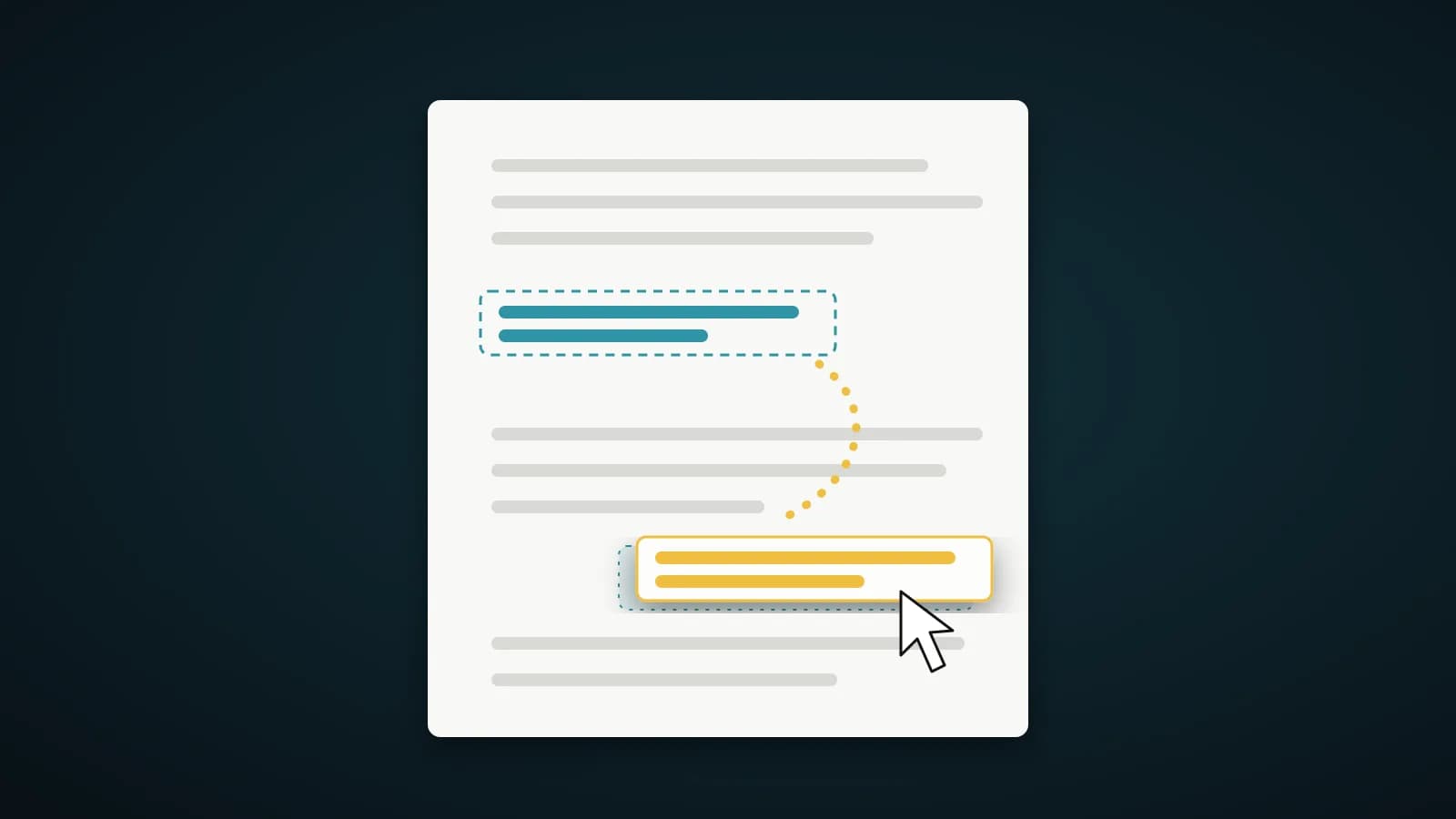
- Drag any block of text to its new position.
- Download the PDF.
While you drag, the text snaps to the left, right, top and bottom edges of the text around it, so it lines up without effort. Hold Alt to drag freely with no snapping.
Move several pieces at once
- Shift-click to add or remove blocks from the selection, or press Ctrl+A to select everything on the page.
- Drag one selected block and the whole group moves together. It stops when any block reaches the page edge, so the layout of the group stays the same.
- Use the arrow keys to nudge by 1 pixel, or Shift + arrow to nudge by 10.
Move text to another page
- Select the text and press Ctrl+X (or click Cut).
- Open the other page.
- Press Ctrl+V (or click Paste here).
The text appears on the new page at the same coordinates it had before, which keeps columns and margins in line. Copy works the same way but pastes a new copy of the text and leaves the original where it is.
The old text is really gone
When you move text, the original is removed from the page content in the saved file, not hidden under a white box. Searching or selecting in the exported PDF finds the text only in its new position.
Check for overlaps
If moved text lands on top of other text, it gets an amber marker, and the download result tells you how many blocks overlap. Move it to a clear spot, or press Reset position to put it back. Reset all moved restores every block on the page, and Ctrl+Z undoes the last move.
Limits to know about
- Text that is drawn as shapes instead of real characters, or that uses unusual embedded fonts, cannot be selected. Use the OCR button on the page first if it is a scan.
- Moved text is placed as its own block. It does not reflow like a word processor paragraph.
Frequently asked questions
Is my PDF uploaded to move text?
No. Moving, cutting, pasting and saving all happen in your browser.
Will the font and size stay the same?
Yes. The block keeps its font, size and colour when it moves.
Can I move text onto a different page?
Yes. Cut it, open the other page and paste. The text is removed from the first page and drawn on the second.
Summary
Choose Move Text, drag the block (or cut and paste for another page), check for amber markers and download. The result is a PDF where the words are in the right place and nothing is left behind in the old one.