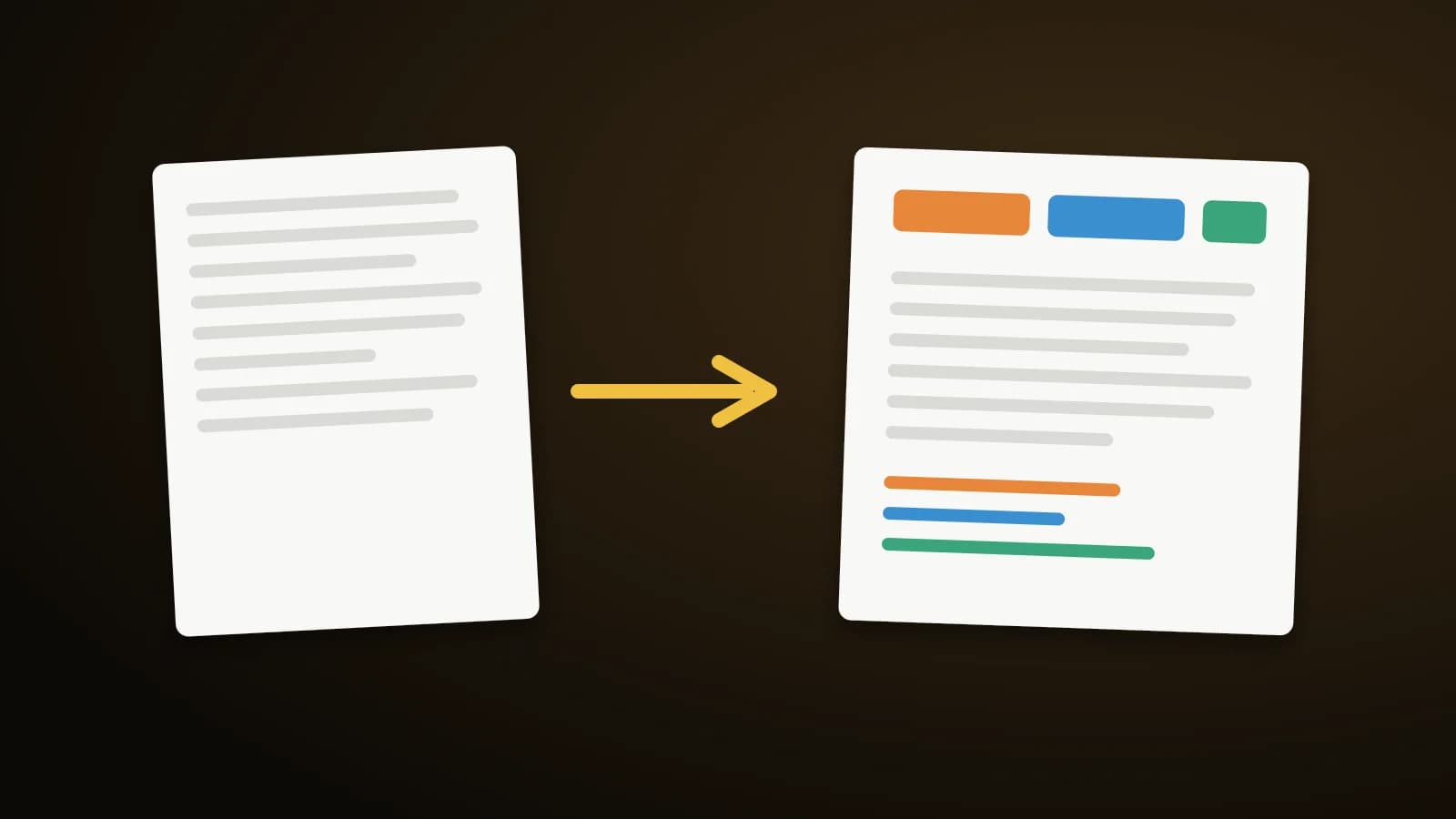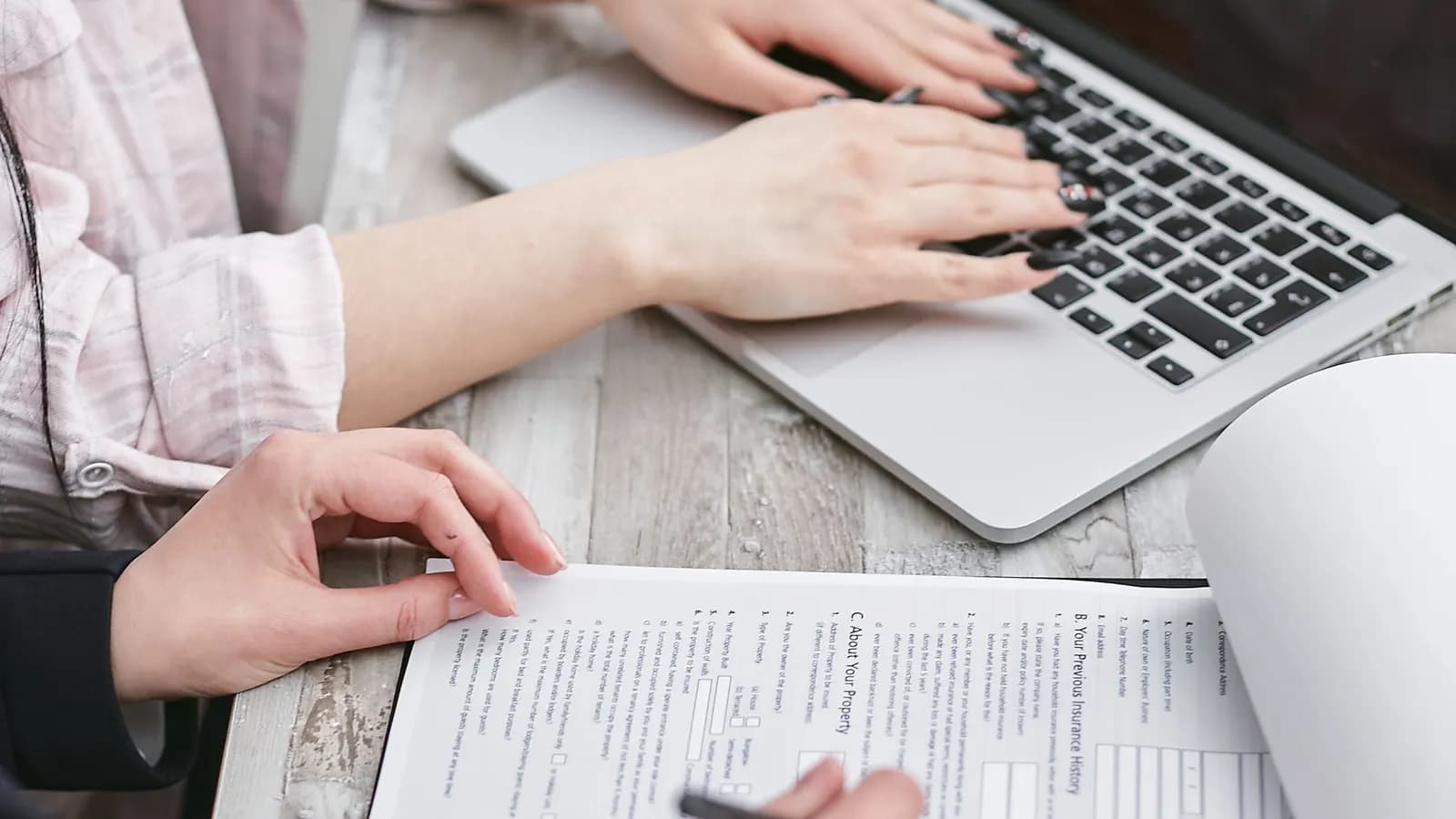
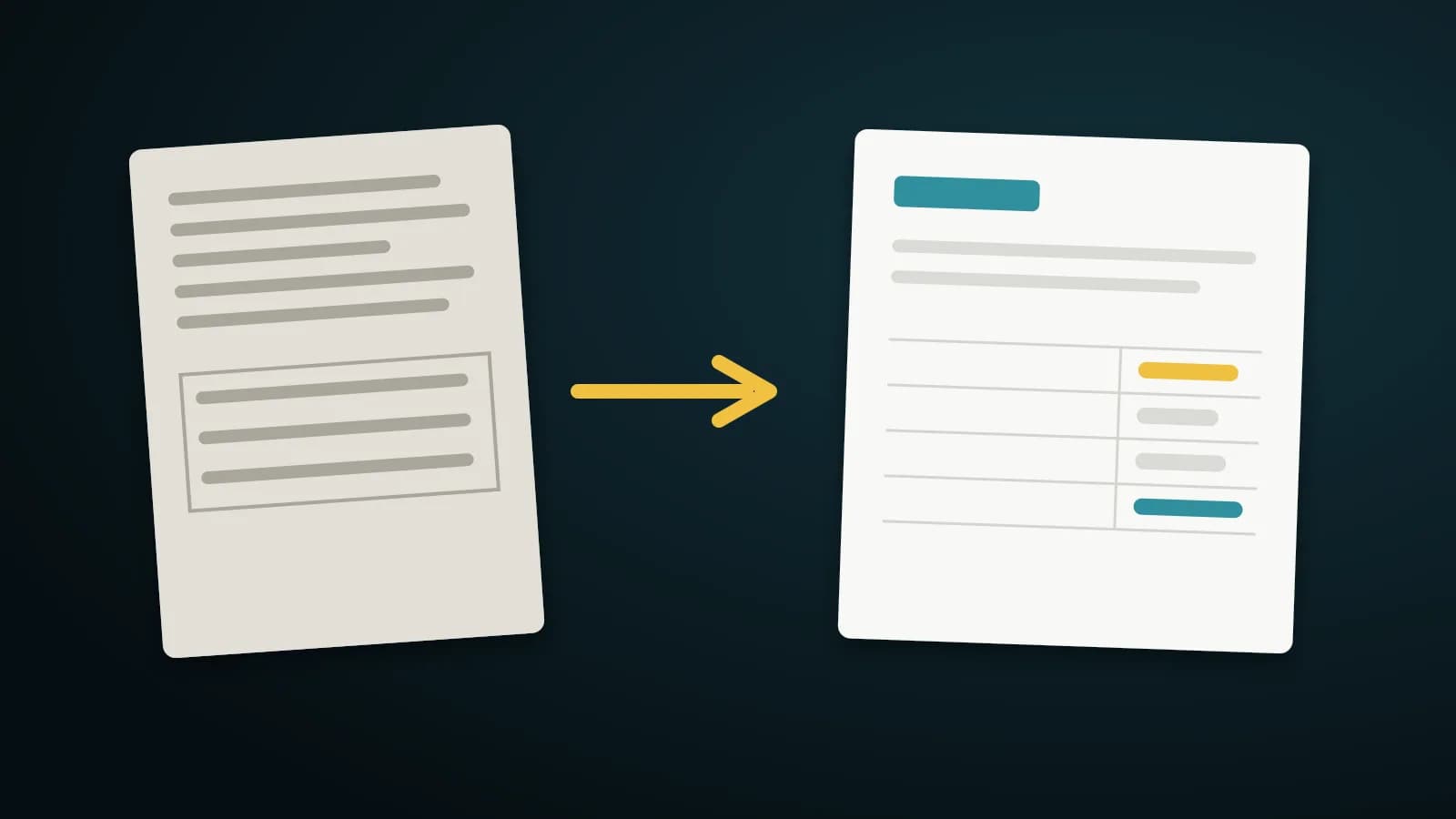
A scanned invoice is a photograph of paper. There is no text inside it, so a normal PDF editor has nothing to select. To change a name, a date or an amount, the page first has to be read with OCR (optical character recognition).
This guide shows how to do that in your browser, without uploading the invoice.
Step by step
- Open Edit PDF and choose the scanned file. Pages with no selectable text are detected and the Scan to text button is highlighted.
- Click Scan to text. Tick the languages on the page (English, Hindi, Gujarati) and pick the pages to read. Only the languages you tick are loaded.
- Wait for the progress bar. Reading runs in the background, so the page stays responsive.
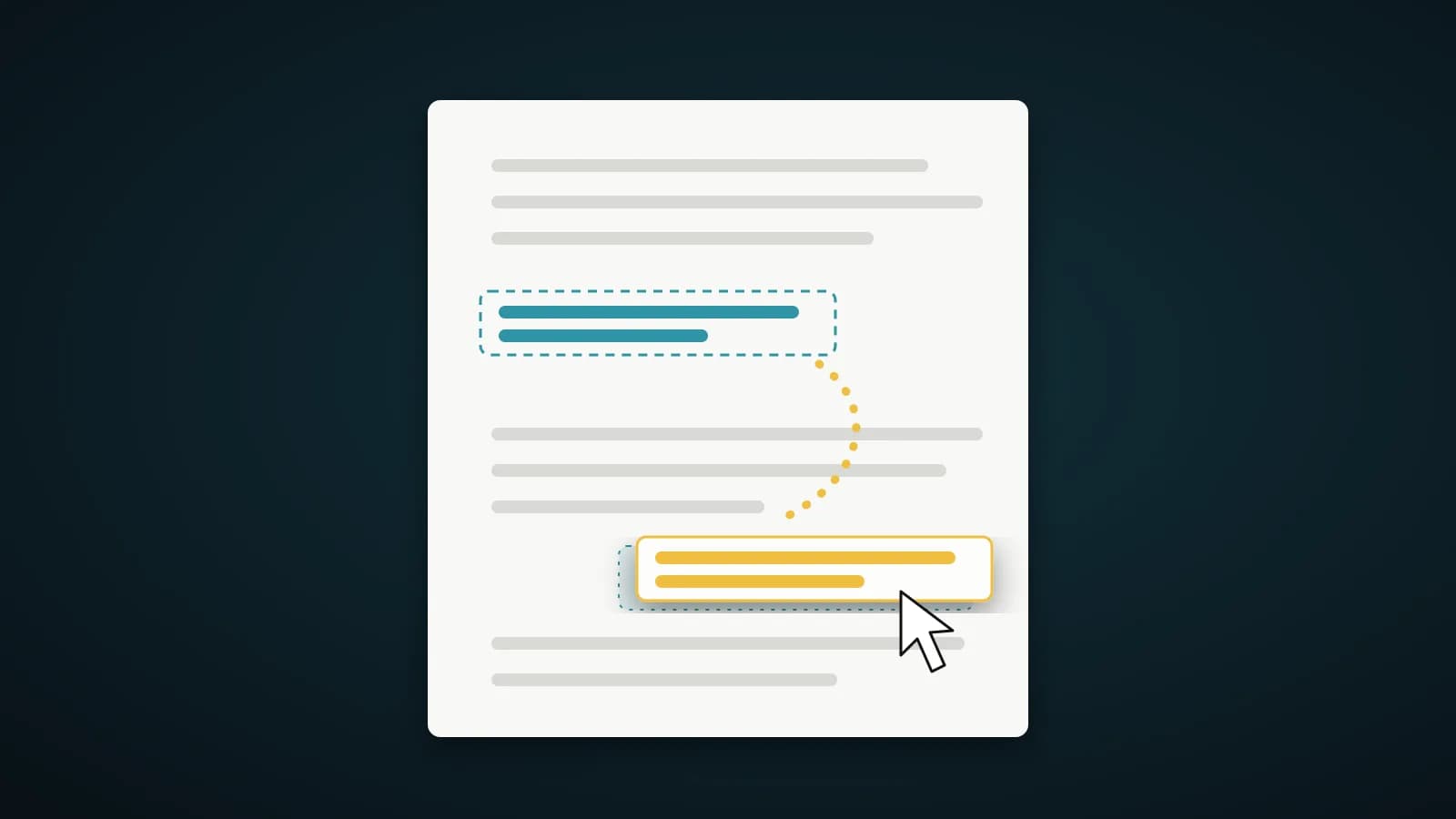
- Click any recognised text to edit it. The old words are covered with a patch that matches the paper colour, and your new text is drawn in a matching size and tone.
- Download. Keep make the exported PDF searchable ticked to add an invisible text layer under the scan.
Check the amber boxes
Words the engine was unsure about are outlined in amber, with a count on the button. Check each one against the picture, especially amounts, GST numbers and dates. Digits such as 0 and O, or 1 and l, are the usual mistakes.
Tips for a clean result
- A straight, well-lit scan at 200 to 300 dpi reads best.
- Table rows are split into separate cells, so editing one cell does not move its neighbours.
- If a new amount is longer than the old one, the box turns red to warn you that it may touch the next cell.
- Use Update total after changing line amounts to keep the invoice adding up.
What OCR can and cannot read
The reader is built for printed text in English, Hindi and Gujarati. Tick only the languages that are actually on the page, because that gives the best accuracy. Each page is drawn at about 216 dpi before it is read, so a sharp scan helps more than a large file does.
Misreads usually come from faint thermal receipts, handwriting, stamps printed over text and photos taken at an angle. Arabic can be typed into a PDF, but it is not available as an OCR language, so a scanned Arabic page cannot be turned into editable text here.
Only change what you are entitled to change
Correcting a typo, an address or an amount on an invoice you issued, before you send it again, is ordinary housekeeping. Altering a document that someone else produced, or changing figures to mislead a bank, a tax office or an employer, can be fraud. Keep the original scan next to the edited copy so you can always show what changed.
Frequently asked questions
Is the scan uploaded for OCR?
No. The OCR engine and language data are served from this site and run inside your browser.
Does it read Hindi and Gujarati?
Yes. Tick the language on the OCR panel. For mixed pages, tick more than one.
Will the exported PDF look like the original?
The scan stays as the page picture. Only the boxes you edit are patched and redrawn, so the rest is untouched.
Is there a size limit?
The editor opens files up to 200 MB. Above 50 MB or 300 pages it warns you that opening and saving can be slow and use a lot of memory. For a very large scan, compress it or split it into parts first.
Summary
Run OCR, check the amber boxes, edit what you need and export with the text layer on. The result is a clean invoice that you can also search.