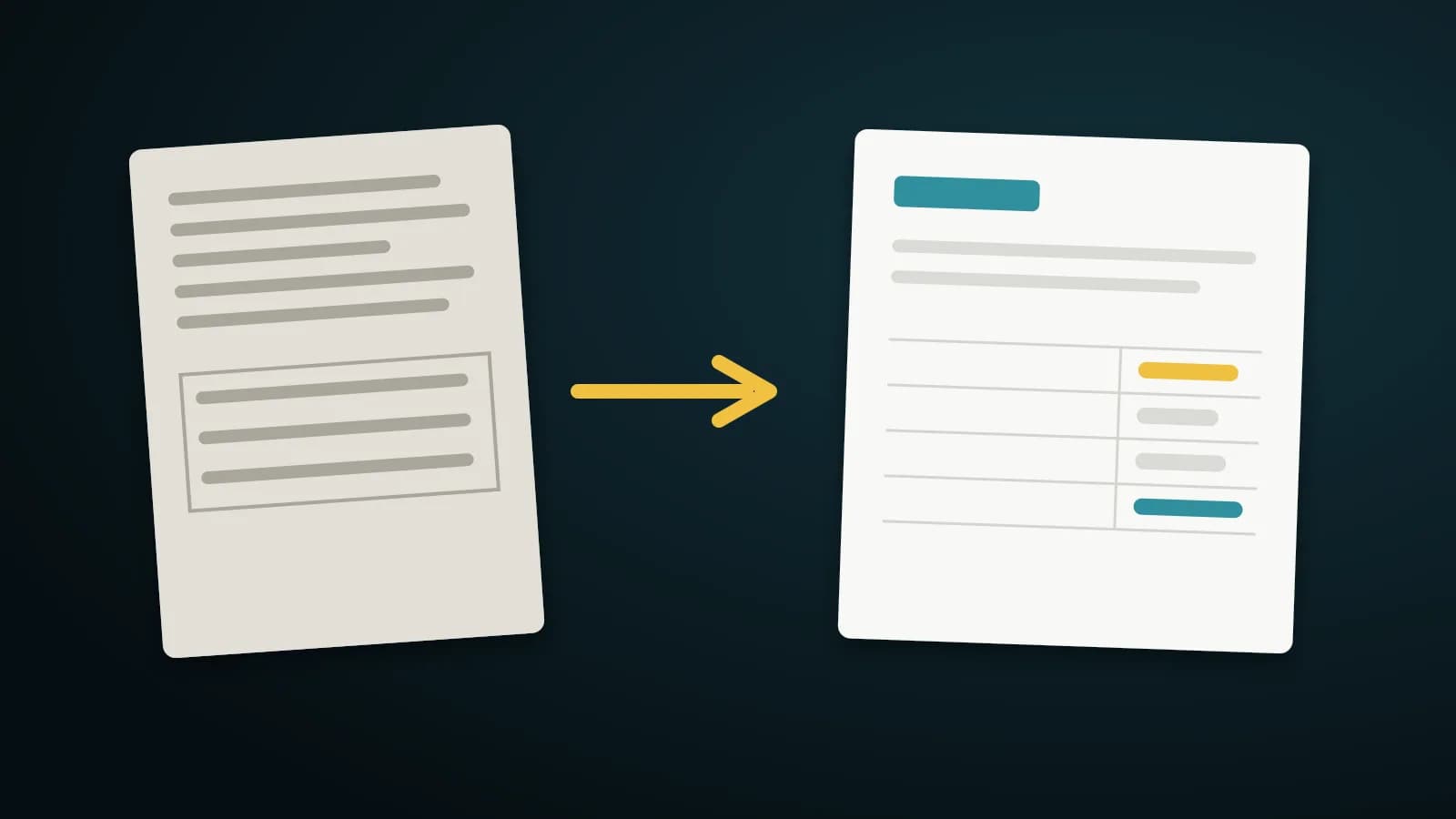
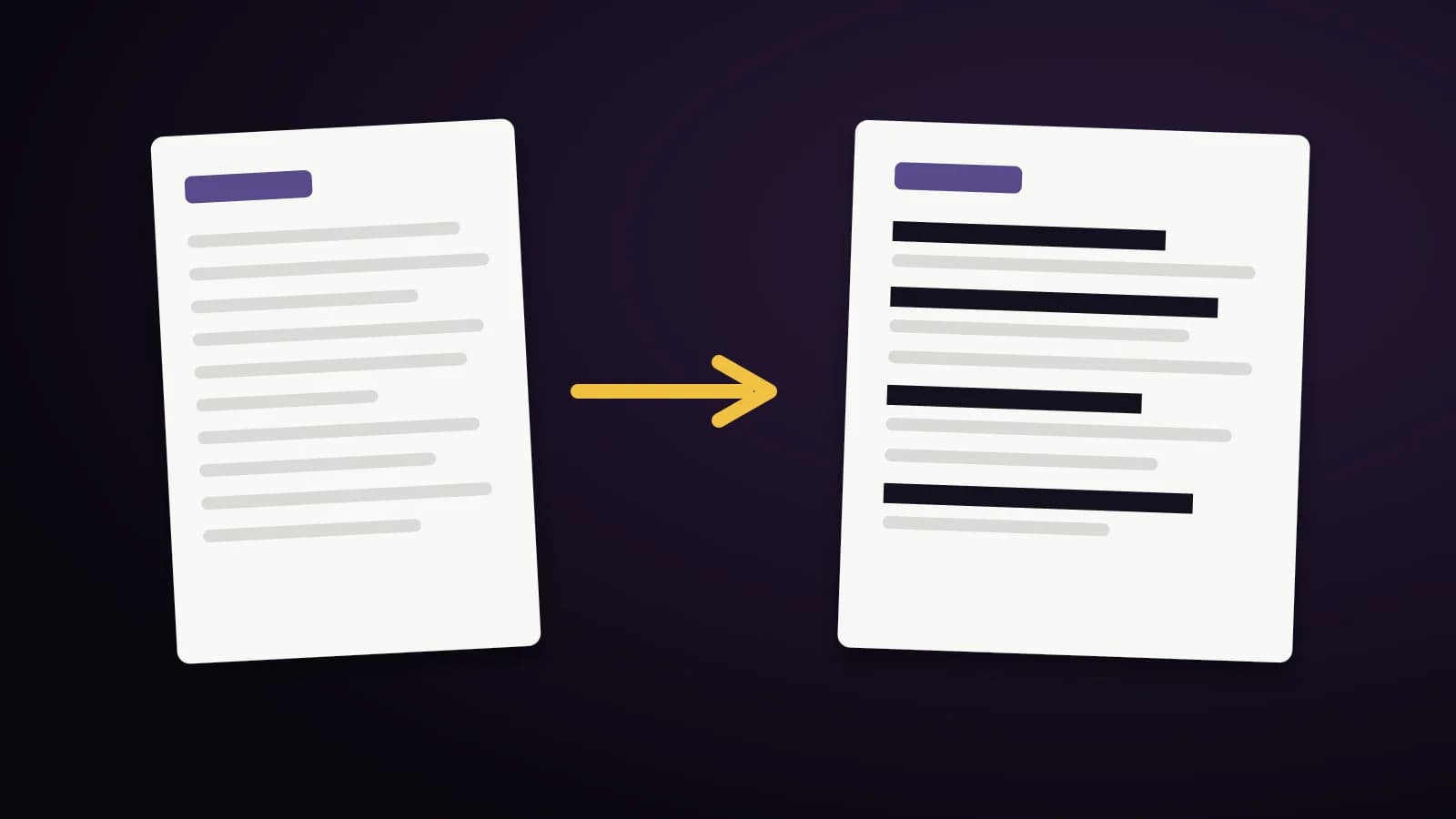
Before you send a bank statement to a landlord, a loan agent or a visa office, you usually need to hide account numbers, a PAN or an Aadhaar number. Many people draw a black rectangle over the text and send the file. That is not redaction: the text is still inside the PDF, and anyone can select it, copy it or search for it.
This guide shows how to remove sensitive data from the file itself, and how to prove it is gone.
Why a black box is not enough
A PDF stores text and graphics as separate layers. A rectangle drawn on top only hides the text visually. Open the file in any viewer, press Ctrl+A and the hidden numbers appear. Real redaction deletes the characters from the page content.
How to redact with Edit PDF
- Open Edit PDF and choose your statement. If it is password-protected, enter the password; it stays in your browser.
- Click Redact. Tick the kinds of data to find: PAN, Aadhaar, account numbers, IFSC, mobile numbers, emails. You can also add your own word or pattern.
- Review the list of matches. Numbers that fail their checksum are flagged as likely false positives, and you can untick any match.
- Choose a black box (or none), keep remove author and creator details ticked, and apply.
- Read the verification result. The saved file is read again, and the tool reports whether any redacted text can still be found.
Everything happens in your browser, so the statement is never uploaded.
What to check before sharing
- Try Ctrl+F for the number you removed. It should find nothing.
- Select the area with your mouse and paste it into a notepad. It should be empty.
- Look at the warnings. Text in unusual fonts, or pictures that are only partly covered, are reported so you can handle them by hand.
- A scanned statement has no text to remove, so run Scan to text first, then redact.
What the tool can find automatically
The built-in patterns cover PAN, Aadhaar, GSTIN, IFSC codes, mobile numbers, email addresses, card numbers and account numbers of 9 to 18 digits. You can also add your own word or pattern, such as a name or a reference.
The account-number pattern matches any run of 9 to 18 digits, so it can also catch a transaction reference or a long amount. Go through the list of matches and untick anything you want to keep.
Redact first, then compress or protect
Do the steps in this order: redact, check the result, and only then compress or password-protect the final file. A password only limits who can open a PDF. It does not remove anything, so a protected but unredacted statement still contains every number once it is opened.
Share the redacted copy and keep the original private. Redaction deletes the text in the new file, so you cannot undo it there. The original stays untouched on your device.
Frequently asked questions
Does it also remove the author and software name?
Yes, if remove author and creator details is ticked. Title, author, producer and embedded metadata are cleared.
Can redacted text be recovered later?
Not from the text layer: the characters are deleted from the page content and the saved file is re-read to confirm. Pictures only partly under a box are reported because their pixels can remain.
Is my statement uploaded?
No. Finding, removing and verifying all run in your browser.
Is there a size limit?
The editor opens files up to 200 MB. Above 50 MB or 300 pages it warns you that opening and saving can be slow. For a very large statement, split it into parts and redact each one.
Summary
Cover is not removal. Use real redaction, check with search and copy, and strip the metadata before sharing a statement.