A ten-page contract that is 30 MB on your phone and a two-page letter that is 80 KB on your laptop can both be called "a PDF". The difference is what is inside. Scanned PDFs are the heaviest ordinary documents most of us deal with, and they are also the ones that shrink the most, so it is worth knowing why.
Why a scanned PDF is so large
A scanner or a scanning app does not read your page. It photographs it. Each page is stored as an image the size of the paper at a fairly high resolution, and the PDF is just a stack of those pictures. A page of plain text that would cost a few kilobytes as real text costs one to several megabytes as a photo.
That is also why scans differ so much from one app to the next. The same sheet of paper can come out at 300 KB or 3 MB depending on the resolution, the colour mode and the JPEG quality the app chose.
What makes the biggest difference
Roughly in order of impact:
- Resolution. More pixels per page means a bigger file. Many scanner apps let you choose a quality or resolution level. For pages you only need to read on screen, a lower setting is often still perfectly legible.
- Colour or grayscale. A black-and-white letter scanned in full colour carries information it does not need. If your scanning app offers a grayscale or document mode, use it for text pages.
- Page count. Obvious, but easy to forget: forty photos of a page are forty times heavier than one.
- A photo-based scan versus a real PDF. If you can export the original document from the program that made it (a word processor, an invoice system), that PDF will be a fraction of the size of any scan of its printout.
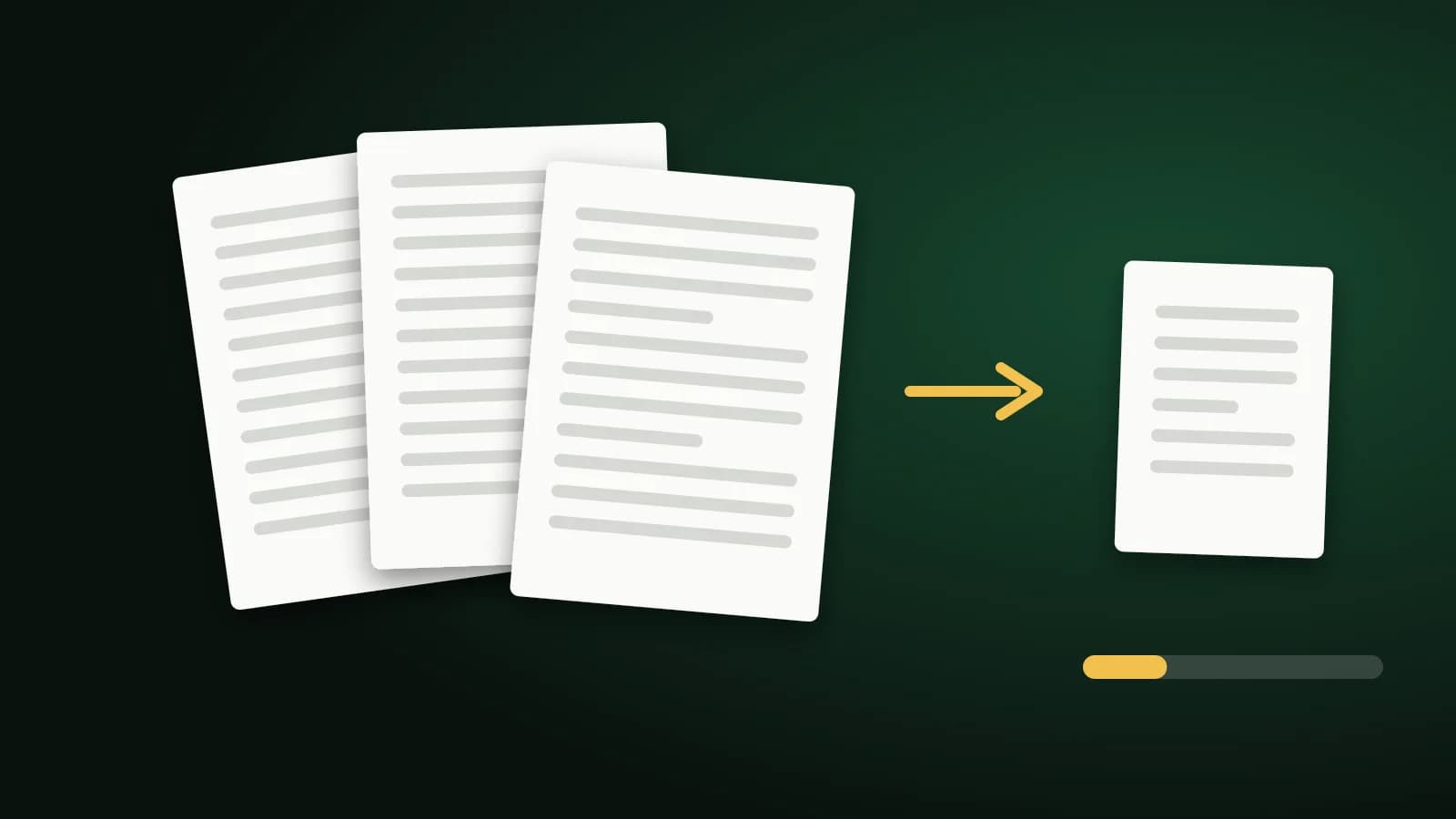
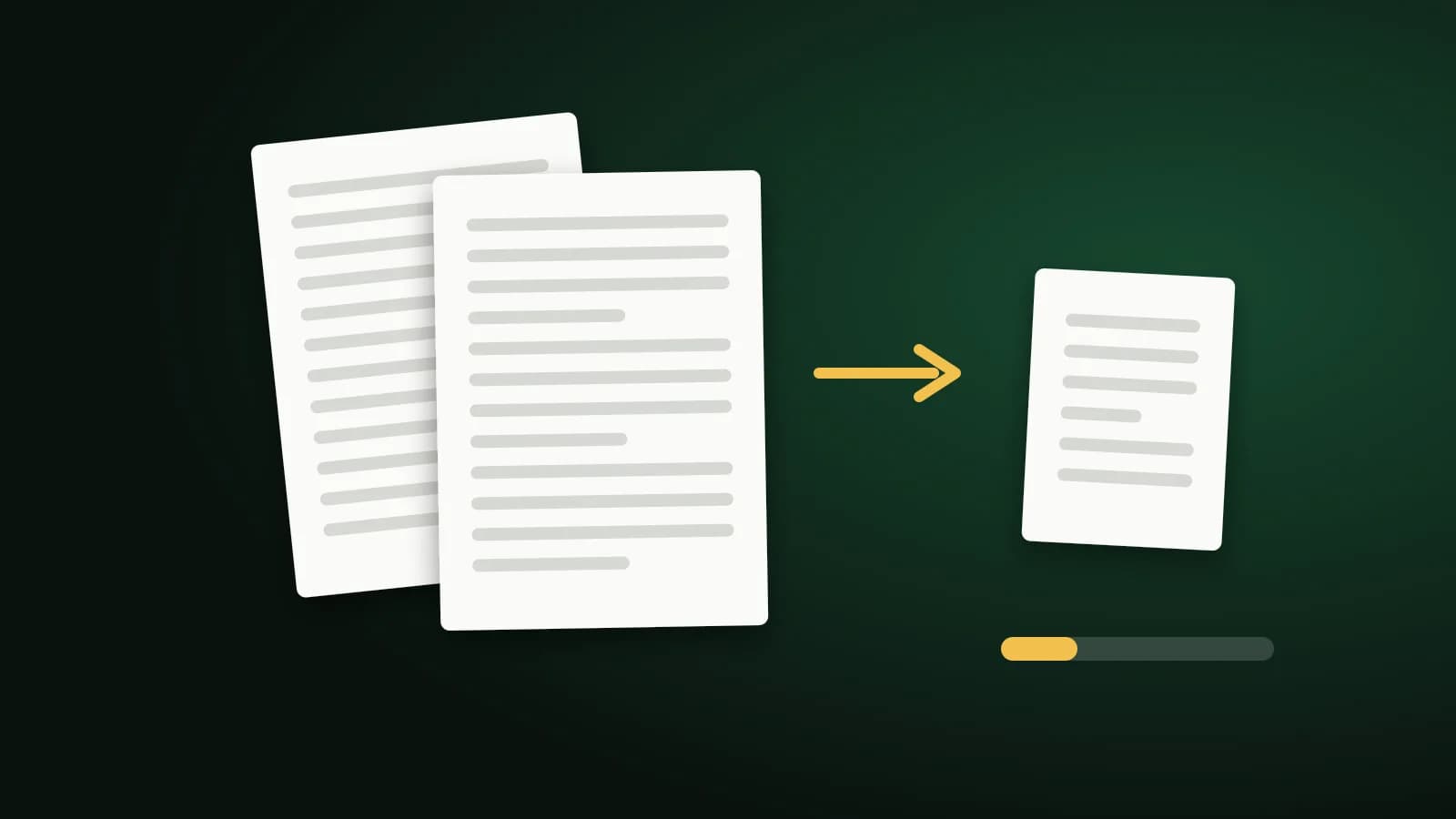
If the scan already exists, compression is the quickest way to claw most of that weight back.
Compress the scan
The Compress PDF tool re-encodes the pictures inside your PDF at a lower JPEG quality and caps the pixel size of very large ones. Text and vector graphics are left as they are, so a scan that has a text layer from OCR keeps it, and you can still select and search it. Your file is sent to our server over HTTPS and deleted as soon as the result is returned; if the server cannot be reached, a more basic compression runs in your browser and nothing is uploaded.
- Open the tool and add your scan.
- Start with Recommended. It is the best balance for most scans.
- If the result is still too big, try Extreme. It gives the smallest file and is usually fine for pages that only have to be read.
- Check the before and after sizes shown, then open the result and zoom in on the smallest print, stamps and signatures before you send it.
If the compressed file is not smaller, you get your original back unchanged rather than a bigger one. Transparent areas in images are flattened onto white, and a digital signature on the original stops being valid, because the file is rewritten. Keep your original and treat the compressed copy as the one you send.
When you have a specific size to hit
Upload forms and email limits often want a number, such as under 200 KB or under 500 KB. The compressor has no free-form size box, but there are shortcut pages that try the levels for you and keep the most readable result that fits: Compress PDF to 200 KB and Compress PDF to 500 KB. There is also a 100 KB version.
Be realistic about the target. A single page or two often fits in 200 KB. A twenty-page scan almost never fits in 100 KB, because every page is still a picture. When a size cannot be reached, the tool says so and gives you the smallest version it could make.
If it is still too big
- Split the document. Use Split PDF to send it in two or three parts, which also helps when an upload form allows several files.
- Drop pages you do not need. Cover sheets, blank backs and duplicate pages add up. Delete PDF Pages removes them.
- Scan again at a lower setting. If you still have the paper, rescanning in grayscale at a lower quality is often the single biggest saving.
- Send a link. For a large file that has to stay at full quality, a shared link beats an attachment.
Frequently asked questions
Why is my scanned PDF so big?
Because each page is stored as a photo. Text that would be tiny as real text becomes a full-page picture, and phone scanning apps tend to save those pictures at high quality.
Will compressing a scanned PDF make it unreadable?
Not usually, if you pick the right level. Recommended is rarely a problem. Extreme is smaller but can soften fine print, so always zoom in and check before you send the file.
Does compressing remove the text layer from my scan?
No. Only the images are recompressed. If your scan has searchable text from OCR, it stays as it was.
Can I get a 20-page scan under 100 KB?
Almost certainly not without making it unreadable. Each page is an image, and a few kilobytes per page is not enough for legible text. Aim for a higher limit, split the document, or ask whether the recipient can accept a bigger file.
The short version
A scan is a stack of photos, so the savings come from the pictures: lower the resolution and colour when you scan, compress with Recommended first and Extreme if you must, check the result at full zoom, and split or trim the document when one file will not do.