You change one Hindi name in a PDF and the new text turns into empty boxes, question marks or letters in the wrong order. That is a font problem, not a mistake on your part. PDFs only contain the letters their fonts include, and many invoices use a font that has nothing for the script you are typing.
This guide explains what happens and how to avoid it.
Why the letters break
A PDF font is usually a small subset: only the characters used in the original document. If you type a character that is not in it, the editor has no shape to draw. Indian scripts add a second problem: letters join and move (matras, conjuncts), and Arabic letters change shape and run right to left. Drawing them one by one, without shaping, gives broken words.
How Edit PDF handles it
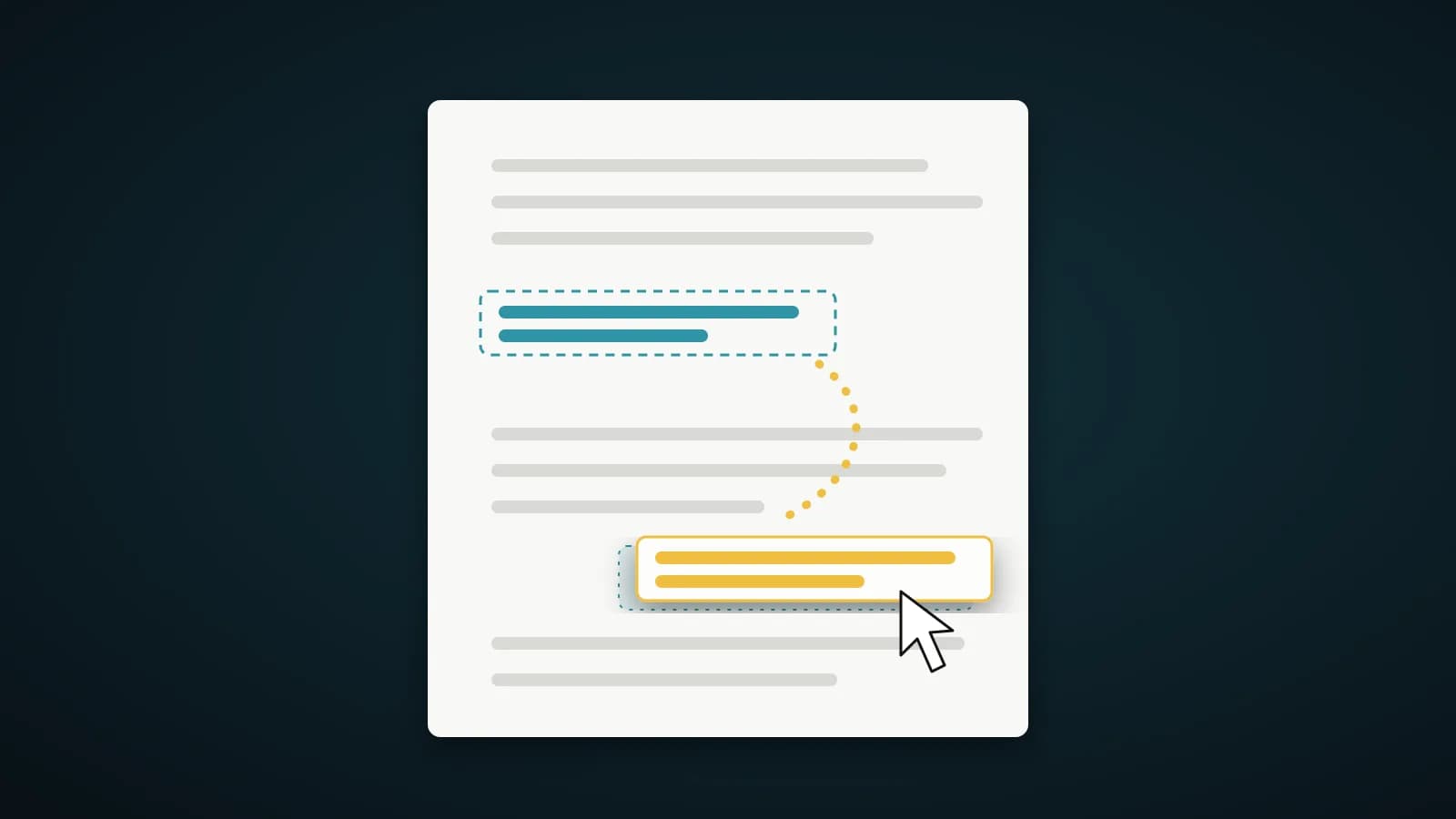
- Open Edit PDF and click the text you want to change.
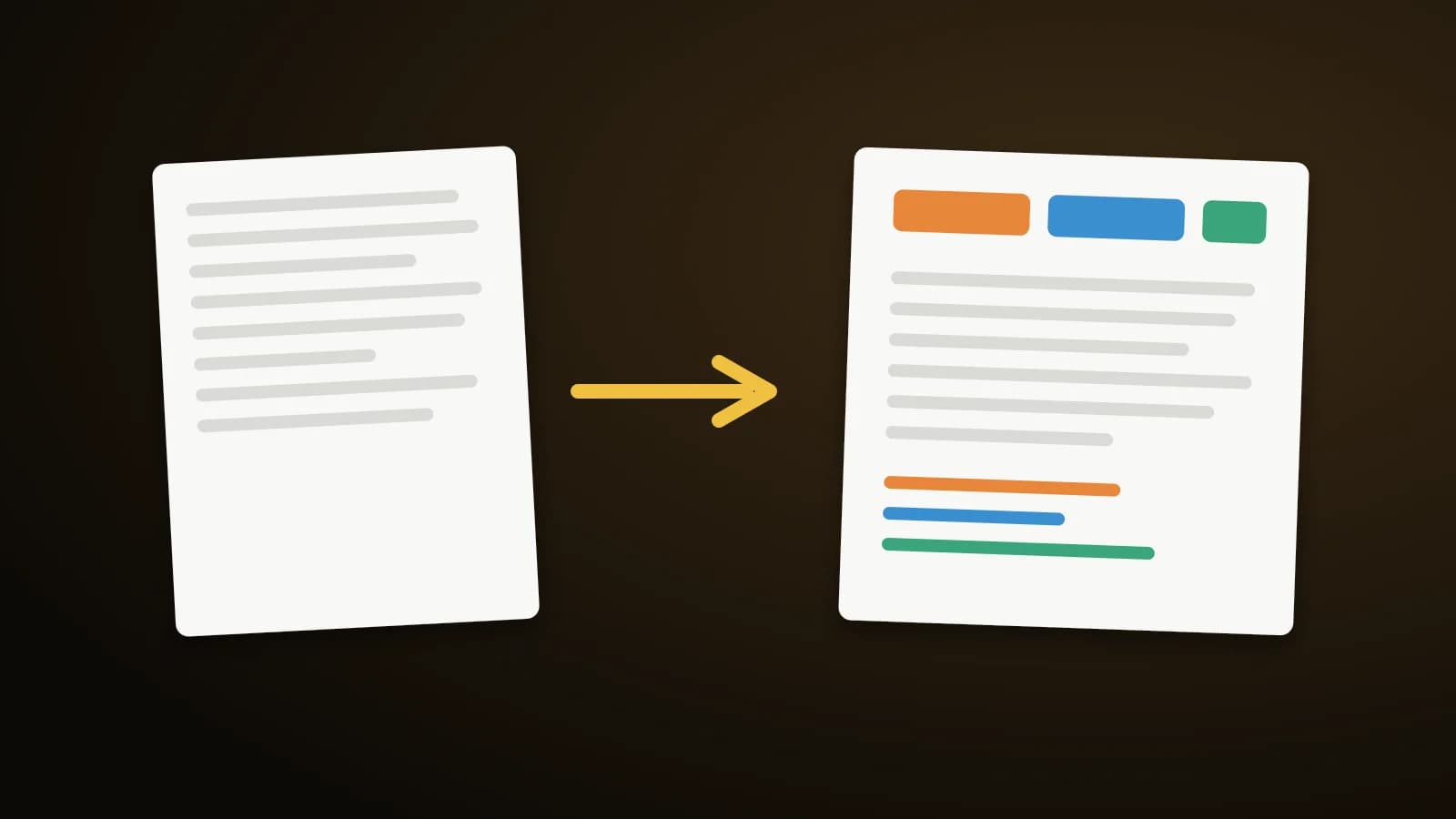
- Type in Hindi, Gujarati or Arabic. Characters the original font cannot draw are written with built-in Noto fonts, shaped so vowel signs and joined letters land in the right place.
- Download. The fonts needed are embedded in the PDF, so it looks the same on every device, with no dependency on fonts installed on your computer.
Fonts load only when you use them, so the editor stays light for English documents.
Things to know
- Bold carries over. Italic is not available for these scripts, and the editor tells you when it draws upright text instead.
- If the original font is replaced for part of a line, you see a note after export.
- For a mixed line such as a name in English followed by Hindi, each part uses the best font for its script.
- A character that no bundled font has is reported instead of being silently replaced.
Which scripts and fonts are covered
Edit PDF writes Hindi (Devanagari), Gujarati and Arabic with built-in Noto Sans fonts, in regular and bold. Symbols the standard PDF fonts cannot draw, such as the rupee sign, use a Noto Sans symbol font. Each font is downloaded only when your text needs it, so English-only documents stay light.
Typing and checking tips
- Zoom in on joined letters and vowel signs after typing, and compare them with the original wording.
- Arabic runs right to left. Type it normally and check that numbers and punctuation sit where you expect.
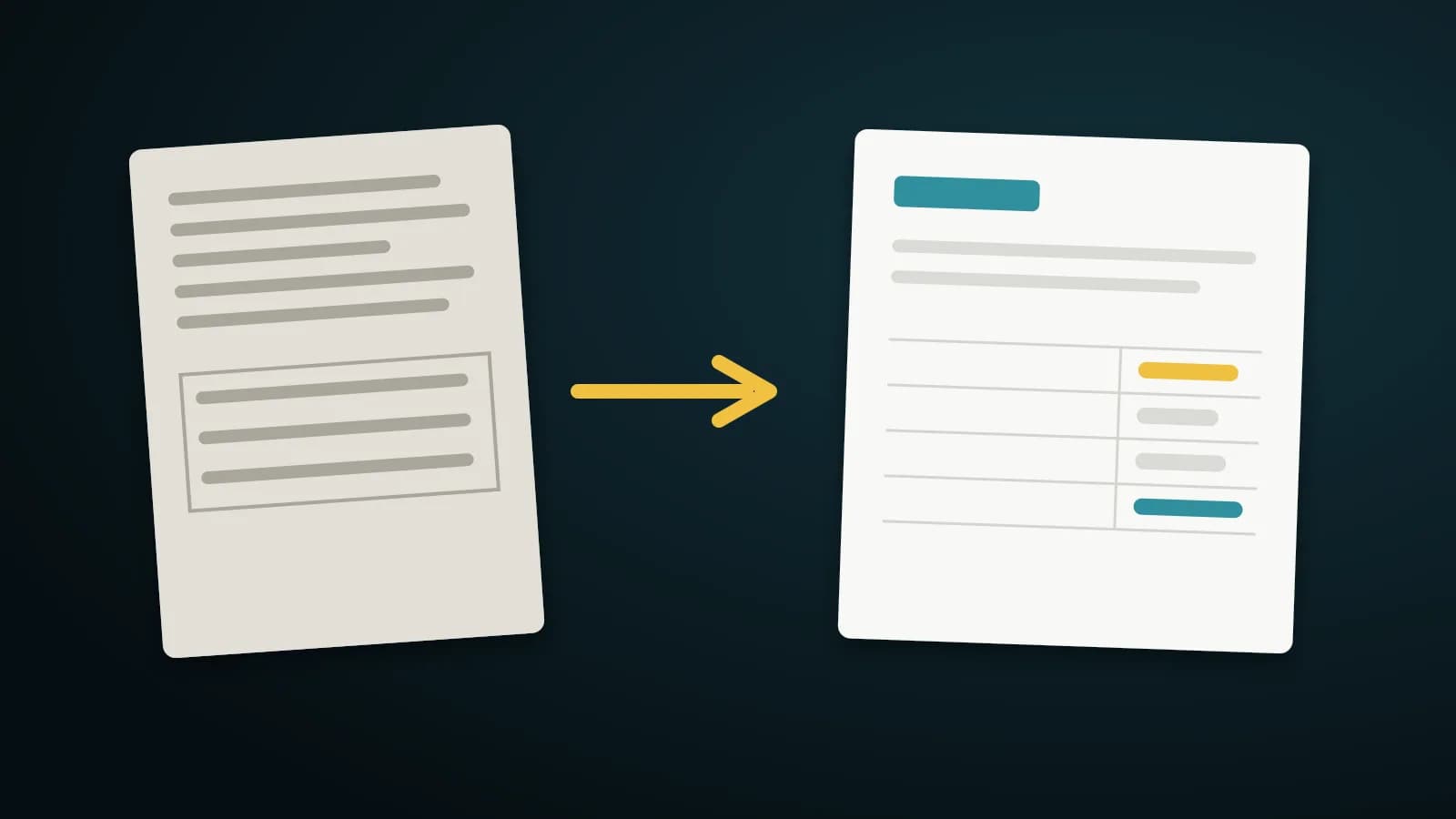
- If the original page is a scan, run Scan to text first. The OCR reads English, Hindi and Gujarati; it does not read Arabic, so a scanned Arabic page cannot be edited this way.
- Read the notes shown after export. They tell you if any text was drawn upright instead of italic, or if a character had no font.
Frequently asked questions
Do I need Hindi fonts installed?
No. The fonts are bundled and embedded into the PDF.
Will it work on a phone or Mac?
Yes. Everything runs in the browser, and the fonts travel inside the file.
Can I also scan and edit a Hindi invoice?
Yes. Use Scan to text with Hindi ticked, then edit the recognised text.
Can I scan and edit an Arabic document?
The OCR reads English, Hindi and Gujarati only. You can still type Arabic text into a PDF that already has selectable text, but a scanned Arabic page cannot be converted to editable text here.
Summary
Type in your script, let the built-in fonts fill the gaps, and check the export notes. The text stays real, selectable and searchable.