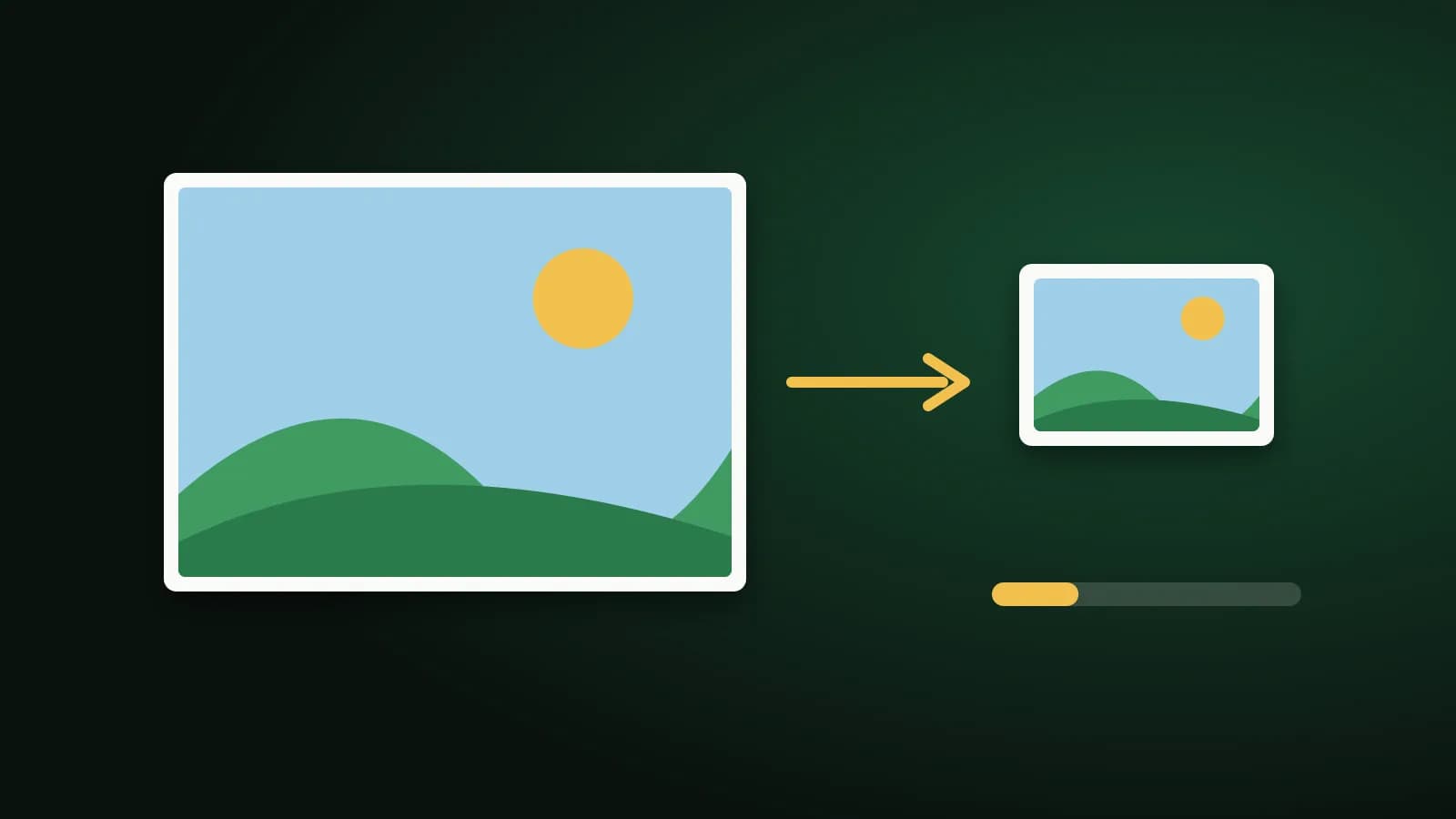
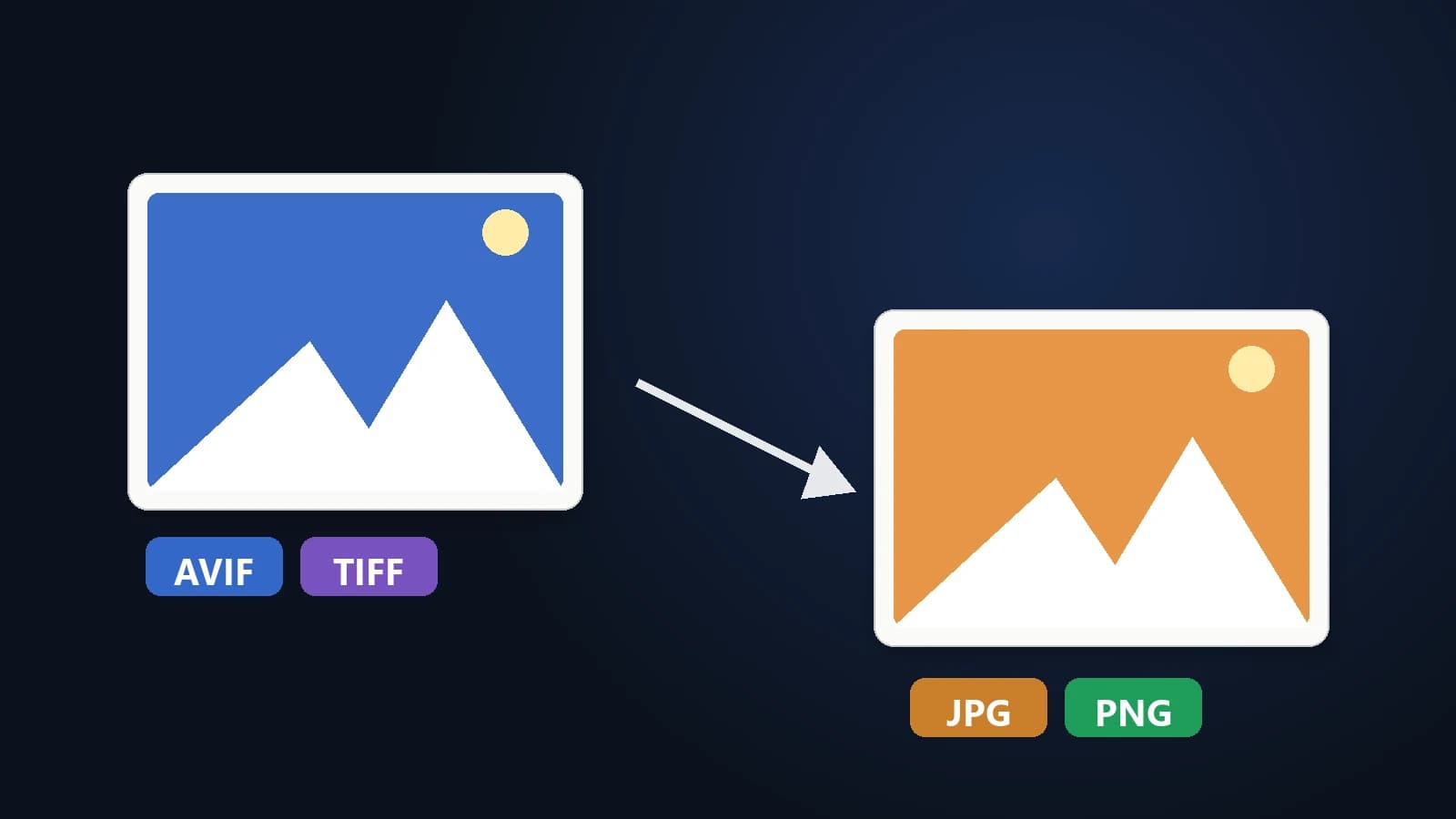
You save an image from a website and it turns out to be an .avif file that your photo viewer refuses to open. Or a scanner hands you a .tiff that is 40 MB and bounces off every upload form. Neither file is broken. They are formats built for different jobs, and the fix is the same in both cases: convert the picture to JPG or PNG.
What is an AVIF file?
AVIF is a modern image format based on the AV1 video codec. Websites like it because it makes photos much smaller than JPG at similar visual quality, often around half the size. It also supports transparency, high colour depth and HDR.
The catch is compatibility. Current Chrome, Edge, Firefox and Safari 16 or newer show AVIF without trouble, but older Windows photo apps, many editors, email clients and upload forms still don't. That is why a picture that looked fine in the browser won't open once downloaded.
What is a TIFF file?
TIFF is an older format (from 1986) that scanners, professional cameras, print shops and archives still rely on. It can store images without any loss, with 16-bit colour, CMYK for printing and many pages in one file.
The price is size. An uncompressed A4 page scanned at 300 dpi is already around 25 MB. Most browsers and phones also can't display TIFF at all, so sharing one usually means converting it first.
JPG or PNG: which one should you pick?
| JPG | PNG | |
|---|---|---|
| File size | Small | Large, especially for photos |
| Quality | Slight loss (hard to see at 85–95%) | None, pixel-perfect |
| Transparency | No, filled with a colour | Yes |
| Best for | Photos, email, upload forms, web | Logos, screenshots, graphics, editing |
A simple rule: choose JPG when you need a small file that opens anywhere, and PNG when the picture has transparency or must stay exactly as it is.
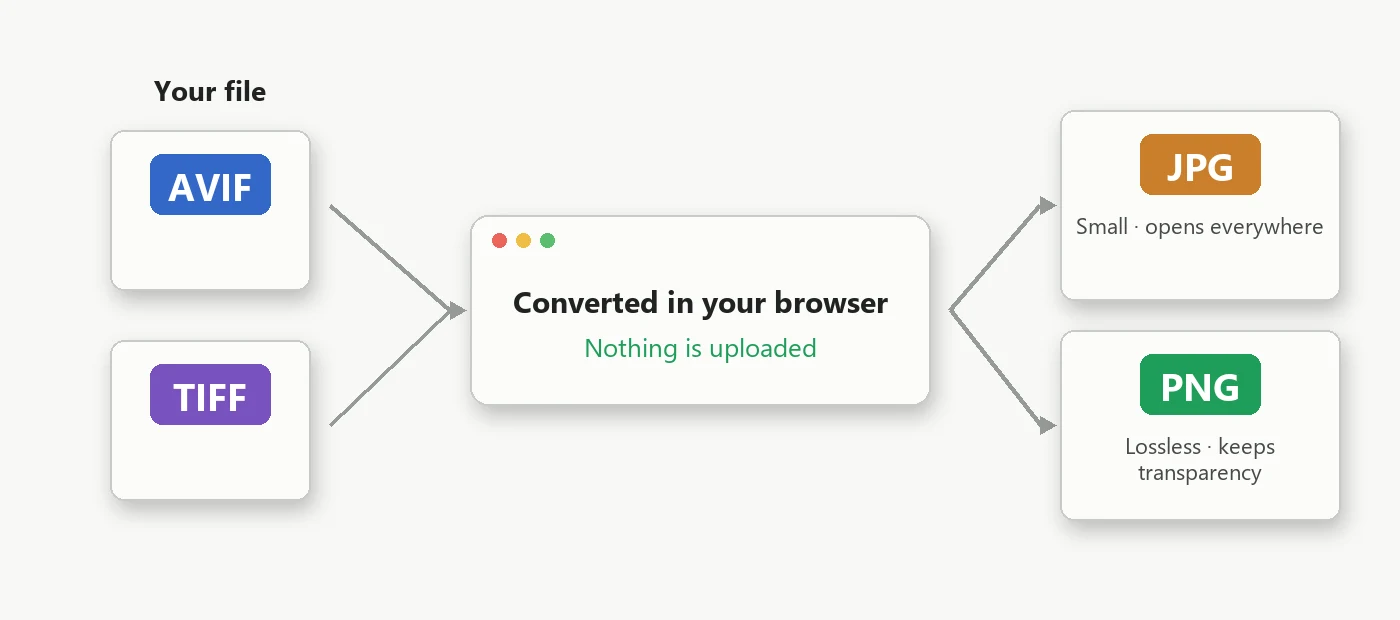
Convert in four tools, all in your browser
Each tool below works the same way: add your files, press convert and download. Nothing is uploaded, because your browser does the decoding on your own device.
- AVIF to JPG for a small file that opens everywhere. Transparent areas are filled with a background colour you choose.
- AVIF to PNG when the AVIF has transparency you want to keep.
- TIFF to JPG to shrink scans and photos for email and uploads.
- TIFF to PNG for a lossless copy with transparency preserved.
You can add many files at once and download the results together as a ZIP.
Multi-page TIFFs
A scanned contract or a fax is often one TIFF with several pages. The TIFF tools convert every page and name the files with their page number (for example scan-page-1.jpg, scan-page-2.jpg), then bundle them in a ZIP.
Tips for a good result
- Keep your original. JPG is lossy, and a TIFF is often your only full-quality copy.
- Use 85–95% quality for photos. Go lower only when you need a smaller file.
- Need an exact size limit? After converting, use Compress Image, or Compress Image to 50 KB for forms with a strict limit.
- Coming from an iPhone? Those pictures are HEIC, not AVIF. See HEIC vs JPG and HEIC to JPG.
When a conversion fails
- "Your browser could not decode this AVIF file." Update your browser, or use Chrome, Edge, Firefox or Safari 16 and newer.
- "This TIFF is damaged or uses a compression or colour mode that cannot be decoded." Some TIFFs use rare compression. Re-save the file from your scanner or editor using LZW or no compression.
- CMYK colours look slightly different. CMYK is a print colour space and screens use RGB, so a small shift is normal. For colour-critical print work, convert with your design software and its colour profile.
- The image is too large. Extremely high-resolution files can exceed what a browser can handle. Reduce the resolution first, or convert them one at a time.
The bottom line
AVIF is great for the web and TIFF is great for archives, but neither is great for sharing. Convert a copy to JPG for size and compatibility, or to PNG when transparency or perfect fidelity matters, and keep the original for later.